Black Header
Starting from left to right, you’ll find the following buttons:

| Customist logo: Returns to the Customist home page. |  |
Undo/ Redo: These actions also have keyboard shortcuts (Ctr+Z or Cmd+Z/Ctr+Y or Cmd+Y). |  |
| My Designs: Exits the current design and returns to My Designs, the area where your projects are stored. |  |
| Name box: Field for entering the current design's name (must save to confirm). |  |
| Duplicate: Saves the current design and creates a copy (available on the My Designs page). Saved changes can not be undone! |  |
Save: Saves the current design's progress. Saved changes can not be undone! |  |
View: Unfolds a menu with different view modes (stitch or pattern) and validation modes. Click to open the menu:
The color map range box is situated on the left side of the screen, below the Yarn box. | 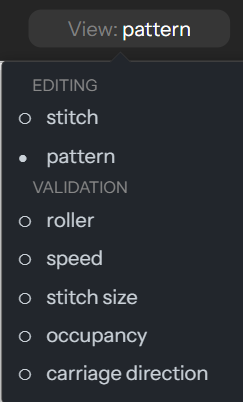 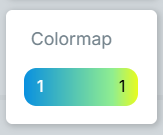 |
| Wi-Fi-Transfer: Only for users with a Wi-Fi SD card. (Under development) |  |
| Knit!: Compiles the design into a .kc file to load onto your SD card (always make sure the file has no errors before knitting with the “Checks” button). |  |
| Notifications: You’ll be notified when another user follows your profile, likes, remixes, or comments one of your designs. |  |
| Help button: Provides quick access to useful resources. It contains links to the user manual, the Changelog (a breakdown of the latest software updates), the shortcut list, the navigation controls guide, and an About section with the software version information. |  |
| Username: Click to access and edit your public profile, My designs, and find the logout button. | 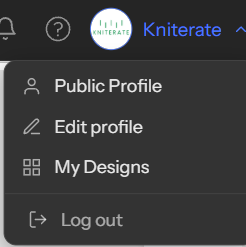 |